Gemini tattoo design
Updated
The Ombra Tattoo team · Written by the Ombra product team — practical guidance for planning tattoo ideas, placement, and cover-up questions.
You can use Gemini to develop a tattoo concept by describing a subject, composition and exclusions, then asking for one specific revision. In our documented example, a moth-and-crescent prompt produced a concept and a follow-up simplified its decoration. Keep the prompt and both outputs so you can judge what changed; a generated image remains a discussion reference, not a tattoo-ready stencil.
What this example actually covers
On 7 September 2026 we entered one original text prompt and one follow-up editing request in Gemini’s web interface. The visible mode selector said Flash. Both images below came from that conversation; they were resized and converted for this page, without retouching their contents. We did not upload a person’s photograph, test a cover-up or run a head-to-head comparison with another app. This small example cannot establish overall output quality or success rates.
Google’s image help documents text-based creation and editing of generated or uploaded images. Availability can vary by account, country and language. Check the linked help and the options shown in your account; this guide does not promise a particular free allowance, price or underlying model.
Start with a subject and one visual decision
Open an image-capable Gemini conversation
Use Gemini’s image creation option if your interface asks you to select a tool. Check that the result is an image rather than a written description. In our session, entering the creation request in the prompt box produced an image.
Write a narrow design brief
Choose one subject and explain its relationship to supporting elements. In this example the moth leads and the crescent sits above it. The outer-forearm direction describes the intended composition; it is not a measurement or proof of fit.
Keep the first result and ask for one revision
Save the initial output before asking for simpler decoration. Name what should stay as well as what should change. Keeping the same conversation makes the object of the editing request clear, but you still need to inspect the result.
Prepare a reference for your artist
Keep both images and the written brief. Identify what you prefer and what remains unresolved, such as final line weight and actual placement. Ask the artist to redraw an original design for your body.
The exact creation prompt we used
Create an original blackwork tattoo concept on a plain white background: one crescent above a symmetrical moth, a narrow vertical composition for an outer forearm, open space between the wings and crescent, no lettering, no logos, no skin or person. This is a conceptual design reference, not a tattoo stencil.
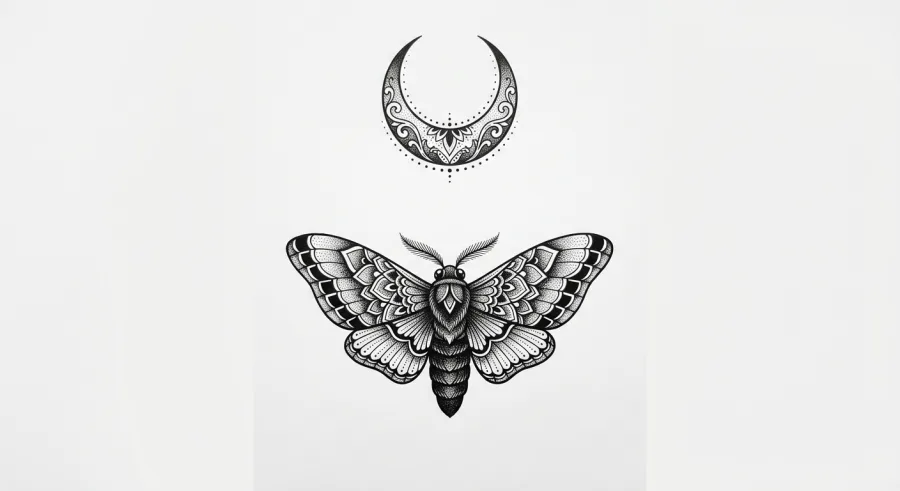
The result contains the requested main subjects and a substantial amount of internal decoration. That gives the second request a specific job: remove some decoration while keeping the recognizable subjects. Instead of asking for a “better tattoo,” we identify the part to change. You can apply that method to your own original motif without copying this particular drawing.
The exact follow-up editing request
Edit the image you just generated. Keep one moth, the crescent above it, the white background and the same overall composition. Simplify the internal wing decoration and remove the decorative pattern inside the crescent. Keep the wing outlines and leave more open white space inside the shapes. Do not add new objects, text or a person.
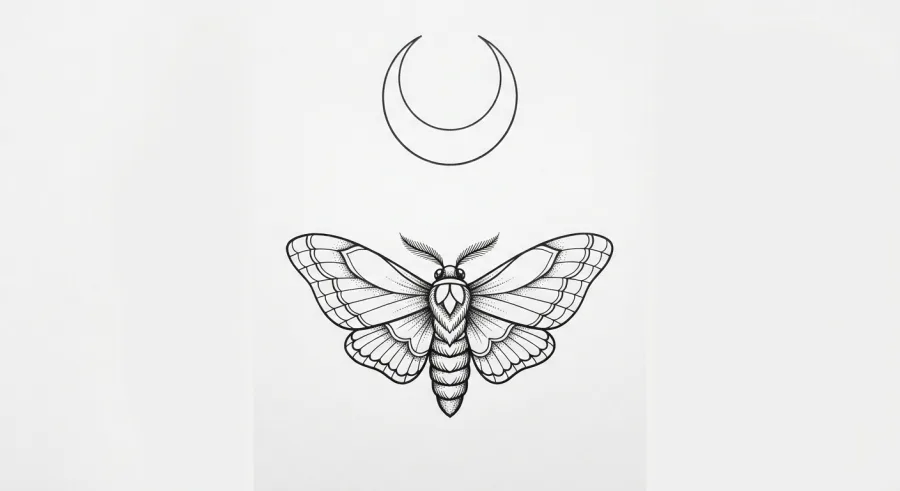
In this pair, the crescent becomes an outline and the wings contain fewer decorative marks. The moth’s internal shapes also change, so this should not be described as a perfectly preserved drawing with only one layer removed. Compare the originals yourself: whether you prefer the simpler result is a design choice, not evidence that it is ready to tattoo.
If you want to start with a guided tattoo brief
Ombra Tattoo organizes its personalized design flow into idea, style, color, placement and size choices, with additional personal details. Those prompts give you a structured way to state what you want before generating a concept. The app is free to download; generation access follows the offer displayed in the app. This describes Ombra’s own workflow and does not rank the quality, speed or price of these tools.
Explore your idea in Ombra TattooCheck an image before calling it a useful reference
- Subject: Did it keep the intended number of objects and the main focal point?
- Geometry: Did outlines, spacing or symmetry change when you requested an edit?
- Lettering and symbols: Is there any unintended mark you need to identify or remove?
- Placement: Is this still a flat concept, or have you actually reviewed its position on your own body with an artist?
- Handoff: Can you explain which parts matter without demanding an exact copy of AI output?
Official tool documentation
FAQ
Can Gemini generate a tattoo idea from text?
Google documents image creation, and our single example produced a moth-and-crescent concept from the prompt shown here. Your account’s availability and the result may differ.
How do I ask Gemini to simplify a design?
Name the parts to keep and the details to remove. Our follow-up kept the moth and crescent while requesting less decoration. Review the entire result because other parts can change too.
Did you compare Gemini and Ombra output quality?
No. This page records one Gemini creation and edit sequence and describes Ombra’s own guided design flow. It makes no measured superiority, speed or price claim.
Can I take the generated image straight to a tattoo appointment?
Take it as a reference together with your brief. The artist needs to assess originality, redraw details and fit the design to your actual placement.
Related guides
Ombra Tattoo
AI cover-up and design concepts